
Show My Wi-Fi QR Code
If you want a QR code for the network you're already connected to, Android can do it for you: open Wi-Fi settings, tap your network, tap Share. iPhone can't — it reveals the saved password instead, and you turn that into a code.
By Chaara, Founder of Qrogo · Published September 19, 2026
The short answer
On Android 10 and later this is built in. Open Wi-Fi settings, tap the network you're connected to, and tap Share — the phone shows a QR code on screen, and anyone who scans it joins without typing the password. Menu names vary a little by manufacturer, but the Share button is on the saved-network screen.
On iPhone there is no built-in QR code. iOS can hand a network to another nearby Apple device, and since iOS 16 it can reveal the saved password (Settings → Wi-Fi → the (i) button → Password, behind Face ID). That gives you the password, not a code — so you make the code from it.
Both phone routes share one limit: the code only exists on your screen. To put one on a table tent, a fridge or a welcome card, generate a code you can download and print.
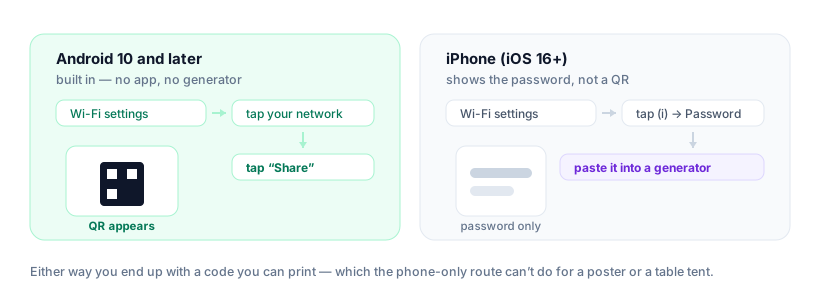
On Android: your phone already has it
- Open Settings → Network & internet → Wi-Fi (wording varies by brand).
- Tap the network you're currently connected to.
- Tap Share. Authenticate with your fingerprint or PIN if asked.
- A QR code appears on screen, usually with the password printed underneath.
Anyone pointing a camera at that screen joins the network. It's the fastest way to get one guest connected when you're standing next to them.
On iPhone: the password, not a code
iOS has no built-in Wi-Fi QR code. What it has are two other things people often mean by the same question:
- Share with a nearby Apple device. Hold the two phones close with both unlocked and a prompt offers to share the password. No QR involved, and it only works Apple-to-Apple.
- Reveal the saved password (iOS 16+). Settings → Wi-Fi → the (i) button beside your network → tap the hidden Password field → Face ID or Touch ID. You can then copy it.
Once you can see the password, making a code takes a few seconds in the Wi-Fi QR code generator — enter the network name exactly as it appears, paste the password, pick the security type.
Which method should you use?
| Android Share screen | Generated code | |
|---|---|---|
| Works on iPhone | No — Android only | Yes |
| Can be printed | No — lives on your screen | Yes — PNG or SVG |
| Works when you’re not there | No | Yes |
| Needs the password typed in | No — it already knows it | Yes, once |
| Good for | One guest, right now | Table tents, welcome cards, reception, signage |
Guest networks, vouchers and captive portals
A Wi-Fi QR code carries three things: the network name, the password and the security type. That is enough to join a network — and it is all it can do.
If your guest network puts people on a login page to accept terms or enter a voucher code, no QR code can complete that step. The code connects them; the browser page still has to load and be filled in. Worth knowing before you print a code for a cafe or a hotel and expect it to skip the portal.
For an open network with no password at all, choose the "no password" or "open" security type when you generate the code — marking an open network as WPA is one of the most common reasons a code fails.
A note on what the code contains
Both routes encode your Wi-Fi password in plain text inside the pattern. Anyone who scans it can read it, so display it where you'd be happy to say the password out loud — a kitchen, a reception desk, a rental — and not on a public website. The code itself is static: it works offline, never expires, and nothing is reported back to anyone, including us. Changing the password means generating a new code.
Frequently asked questions
How do I show the QR code for my Wi-Fi?
On Android 10 and later, open Wi-Fi settings, tap the network you're connected to, and tap Share — the phone displays a QR code on screen. On iPhone there's no built-in QR, but iOS 16 and later can reveal the saved password, which you can put into a Wi-Fi QR code generator.
Can iPhone show a Wi-Fi QR code?
Not natively. iOS can share a network with another nearby Apple device, and since iOS 16 it can show you the saved password, but it doesn't generate a QR code. Reveal the password, then create the code from it.
How do I see my saved Wi-Fi password on iPhone?
Open Settings, tap Wi-Fi, tap the (i) button next to your network, then tap the hidden Password field and authenticate with Face ID or Touch ID. This works on iOS 16 and later.
Why won't my phone's Wi-Fi QR code work for guests?
A phone-generated code lives on your screen, so someone has to be standing next to you. It also can't be printed for a table tent or a welcome card, and it disappears when you close the screen. For anything guests should scan on their own, make a code you can print.
Does a Wi-Fi QR code work on a guest or voucher network?
Only for the network join itself. A QR code can carry the network name, password and security type, but it cannot accept terms or enter a voucher code on a captive-portal login page — guests still have to finish that step in the browser.