QR Code for Guest WiFi
Put your network name, password and security type into a WiFi QR code generator, then display the code where guests sit. They scan it with the phone camera and get a one-tap prompt to join — no password typing. It works on iPhone and most Android phones, and you never read out the password again.
By Chaara, Founder of Qrogo · Published July 25, 2026 · Updated September 17, 2026
The short answer
Put your network name, password, and security type into a Wi-Fi QR code generator, then display the code where guests actually sit — a table tent, a framed card at reception, a window sticker. They point a phone camera at it and get a one-tap prompt to join, so no one reads a twenty-character password off a chalkboard and no staff member repeats it all day. The code is static and permanent: it works offline and never expires, though changing the Wi-Fi password means generating a fresh one.
It works on iPhone from iOS 11 and on most Android from version 10. Four things break it: a mismatched security type, a password typo, a hidden network not flagged as hidden, and captive-portal Wi-Fi, where the code joins the network but the terms page still has to load. For venues wanting more than network access, point the code at a hosted page carrying Wi-Fi plus the menu or booking link.
Why every cafe, rental and salon is doing this
"What's the WiFi password?" is the most-asked question in any waiting room, cafe, or short-term rental. A WiFi QR code answers it once and forever: guests point their camera at the code and tap to join — no reading a 20-character password off a chalkboard, no typos, no staff repeating it all day.
How to make one
- Open the WiFi QR code generator and enter your network name (SSID), password, and security type (usually WPA/WPA2).
- If your network is hidden, tick the hidden option so phones know to look for it.
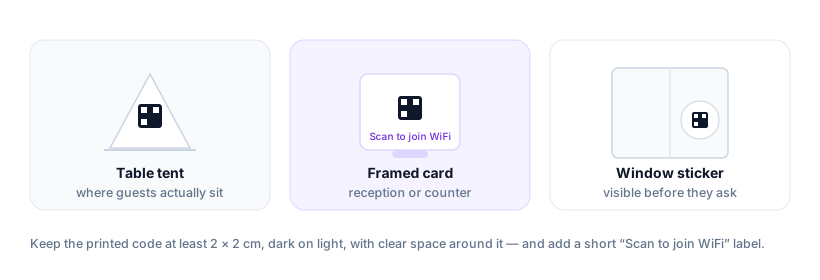
- Download the code and display it — a table tent, a framed card at reception, a window sticker.
The code is static and permanent: it works offline and never expires. The one catch — if you change the WiFi password, you generate a fresh code, because the password is encoded into the pattern.
How auto-join behaves (iPhone vs Android)
| Device | What the guest does | Notes |
|---|---|---|
| iPhone, iOS 11 and later | Camera app shows a “Join Network” banner — one tap | Works from the stock Camera; no app to install |
| Android 10 and later | Joins straight from the Camera or Google Lens | Behaviour varies slightly by manufacturer skin |
| Older Android | Needs a dedicated QR scanner app first | Rare now, but worth a text fallback for the password |
| Captive-portal networks | Joins the network, then still loads the terms page | A code cannot accept terms for them — expect the extra step |
Common reasons it won't connect
- Wrong security type — an open network marked WPA (or vice-versa) fails silently.
- Password typo or special characters — double-check quotes, spaces and symbols.
- Hidden network — must be flagged as hidden when you make the code.
- Captive-portal WiFi — networks that make you accept terms on a login page can't be fully joined by a code; the code connects, then the browser page still has to load.
Our full WiFi QR walkthrough goes deeper on each fix.
The upgrade: WiFi plus everything else on one page
A bare WiFi code only joins the network. Often you want guests to get more from the same scan — the menu, today's specials, your booking link, or the house rules. Instead of a WiFi-only code, link a hosted page that shows the WiFi details alongside whatever else matters, and edit it anytime without reprinting. A cafe puts WiFi + menu on it; an Airbnb host folds it into the welcome book.
No tracker between your guests and your network
A guest-facing code should not route people through an ad-tech middleman. Qrogo's WiFi codes are static (nothing to phone home to), and hosted pages are self-hosted with no third-party trackers — guests get online, nobody profiles them. Here's the privacy approach.
Frequently asked questions
How do I make a QR code for guest WiFi?
Enter your network name, password and security type into a WiFi QR generator, download the code, and display it. Guests scan it with their phone camera and get a one-tap prompt to join — no password typing.
Does a WiFi QR code work on iPhone and Android?
Yes. iPhones (iOS 11+) recognise it in the Camera app and offer 'Join Network'. Most Android phones (Android 10+) join from the camera or Google Lens; a few older ones need a QR scanner app.
Why won't my WiFi QR code connect guests?
Usual causes: the security type is set wrong (WPA vs open), the password has a typo or special characters, the network is hidden (needs the hidden flag), or it's a captive-portal WiFi that requires a login page — which a join code can't complete.
Can one QR code show WiFi and my menu or house rules together?
Yes. Instead of a bare WiFi code, link a hosted page that shows the WiFi details next to your menu, services, or house rules — so one scan gives guests everything, and you can edit it anytime.