
QR Code for an Airbnb Welcome Book & House Manual
Build one hosted page with your WiFi, house rules, checkout steps and local tips, then make a QR code that opens it and place the code in the rental. Guests scan it with their camera — no app to install — and you can edit the page anytime without reprinting the code.
By Chaara, Founder of Qrogo · Published July 25, 2026 · Updated September 17, 2026
The short answer
Build one hosted page holding the Wi-Fi details, check-in and checkout steps, house rules, how the appliances work, your local recommendations, and how to reach you. Generate a QR code that opens it and place the code by the door or on the kitchen counter. Guests scan it with the phone camera with no app to install, and — the part that matters — you edit the page from your phone afterwards without reprinting anything.
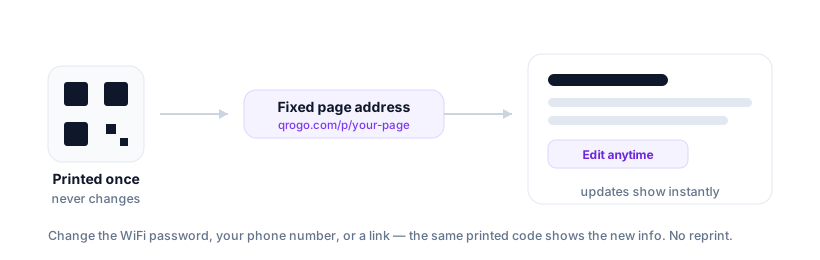
That works because the code encodes a fixed page address while the contents behind that address stay editable. Change a checkout time, add a restaurant, update the Wi-Fi password, and the framed code you printed last season shows the new information immediately. It replaces the laminated binder that gets coffee-stained and goes out of date, and it takes about ten minutes to set up for free. Pair it with a scan-to-join Wi-Fi code to remove the single most common guest annoyance.
Why a QR welcome book beats a printed binder
The laminated binder gets coffee-stained, goes out of date, and no one reads it. A single QR code by the door does the same job better: it opens a clean page on the guest's own phone, it's always current, and — crucially — you can fix a wrong checkout time from your phone in ten seconds instead of reprinting anything.
| Laminated binder | QR welcome page | |
|---|---|---|
| Fixing a wrong checkout time | Reprint and re-laminate | Ten seconds from your phone |
| Condition after a season | Coffee-stained, pages missing | Unchanged — it lives on the guest’s phone |
| Adding a new restaurant tip | Not worth reprinting for | Edit and publish |
| Guest experience | Shared object nobody reads | Their own screen, zoomable, linkable |
| Attaching the full house manual | Bulky extra pages | One PDF on the same page |
| Cost per update | Printing and your time | Free |
What to put on the page
Keep it to what guests actually ask about, in order of how often they ask:
- WiFi — network name and password (or a scan-to-join WiFi code, below).
- Check-in / check-out — times, lockbox code, checkout checklist.
- House rules — quiet hours, parking, trash day, no-smoking.
- How things work — thermostat, coffee machine, TV, laundry.
- Local tips — your genuinely-favorite coffee, food, and walks.
- Contact — how to reach you if something breaks.
How to make it (about 10 minutes, free)
- Create a hosted link-in-bio style page and add a section for each item above. You can build the whole thing signed out; you only sign in to publish it.
- Attach your full house manual as a PDF if you have one, so everything lives in one place.
- Publish, then generate a QR code that points to the page URL.
- Print it, frame a small card, and place it on the kitchen counter or by the entry.
The "editable without reprinting" trick
This is the whole point. The QR code encodes a fixed page address, and you edit the page's contents behind that address. Change the WiFi password, add a new restaurant, update the checkout time — the printed code stays exactly the same and instantly shows the new information. You never reprint, and a code you framed last season still works next season. (See do QR codes expire?)
Add a scan-to-join WiFi code too
Typing a long WiFi password on a phone is the #1 guest annoyance. Alongside the welcome page, make a WiFi QR code that lets guests join the network in one tap — no typing. Our guest WiFi guide covers how auto-join behaves on iPhone vs Android.
Privacy for you and your guests
You're inviting strangers to scan a code in your property, so it matters that there's no tracking funnel behind it. Qrogo's hosted pages are self-hosted with no third-party trackers, and scan analytics (if you use a dynamic code) resolve to country only. Guests get the info; nobody builds a profile on them. Here's the privacy approach.
Frequently asked questions
How do I make a QR code welcome book for my Airbnb?
Build one hosted page with your WiFi, house rules, checkout steps and local tips, then generate a QR code that opens it. Print the code and place it in the rental. Guests scan it in their phone camera — no app to install.
Can I update the welcome book without reprinting the QR code?
Yes. The QR code points to a fixed page URL, and you edit the page's contents whenever you like — new WiFi password, updated checkout time, a new coffee-shop recommendation. The printed code never changes.
Do guests need an app to open the welcome page?
No. It opens in their phone's normal browser straight from the camera. Nothing to download, no account for the guest, and it works on both iPhone and Android.
Is it safe to share my WiFi and house info this way?
The page shows only what you choose to put on it, and with a privacy-first host there's no third-party tracker sitting between your guests and your rental. You control the page and can edit or take it down anytime.